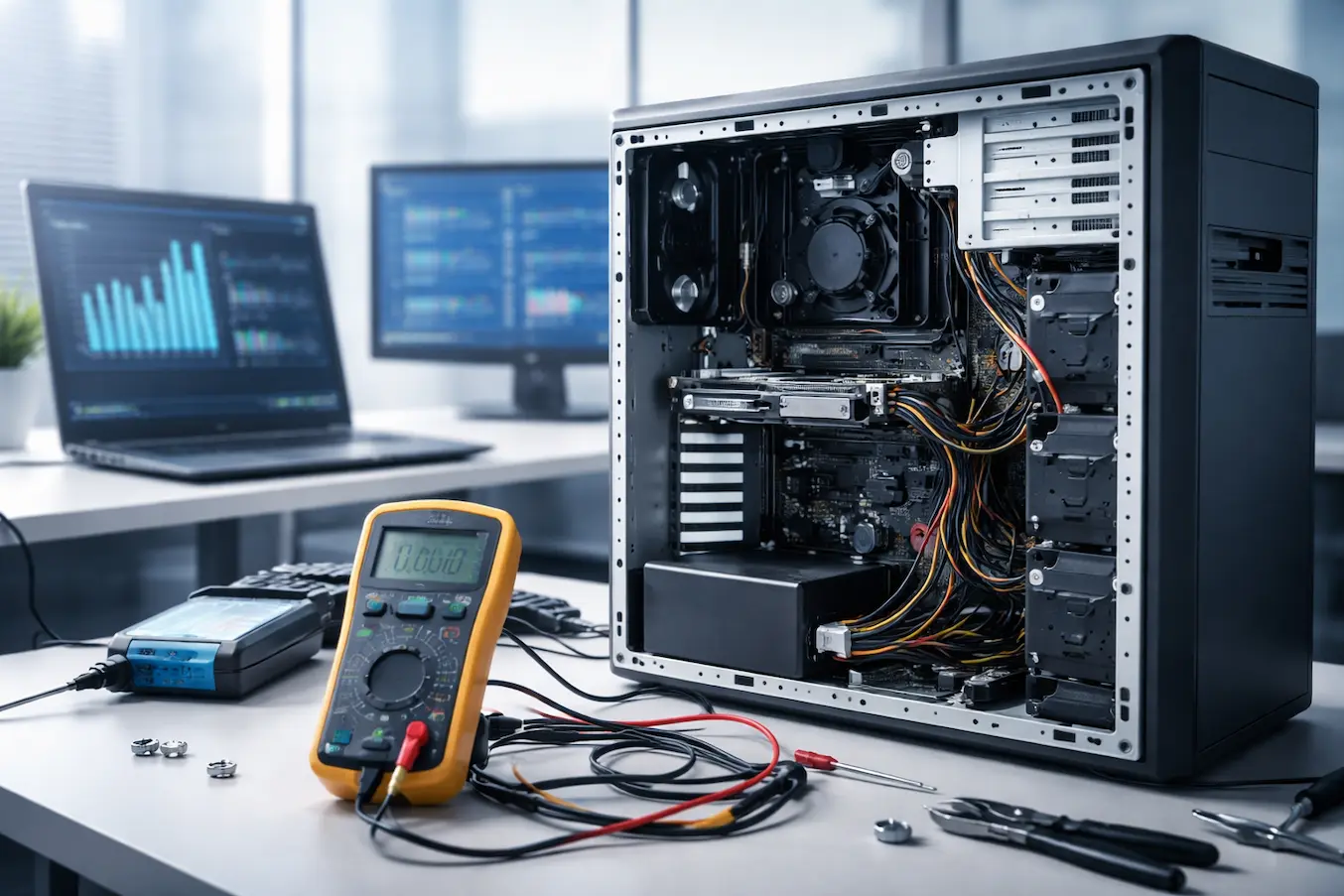
There’s a particular kind of frustration that comes from pressing the power button on your desktop computer and getting absolutely nothing in response—no fans spinning, no lights, no beeps, just silence. I’ve dealt with this situation more than once, both in personal setups and while helping others troubleshoot their machines. At first glance, it feels like a major failure, but in reality, many “no power” issues are caused by relatively simple faults that can be diagnosed methodically.
Desktop systems—whether running on Microsoft Windows or any other operating system—depend on a chain of hardware components working together before anything even reaches the software stage. When that chain is interrupted, the system won’t power on at all. The good news is that with a structured approach, you can isolate the problem without needing advanced technical tools.
This guide walks through how to diagnose no power issues step by step, based on real-world troubleshooting practices, common failure points, and practical experience.
Understanding What “No Power” Actually Means
Before diving into diagnostics, it’s important to clarify what “no power” means in a desktop context. A true no-power condition means:
- No indicator lights on the case or motherboard
- No fan movement (CPU, GPU, or PSU fans)
- No audible beeps or POST activity
- No signs of electrical response when pressing the power button
This is different from “no display” or “boot failure,” where the system powers on but fails to load properly.
A no-power issue typically indicates a failure in one of these areas:
- Power supply unit (PSU) failure
- Faulty power cable or outlet
- Defective power button or front panel connection
- Motherboard failure
- Short circuit or hardware fault
Step 1: Start With the Basics (External Power Check)
The first thing I always check is the simplest: external power delivery.
Verify the Power Source
Make sure the wall outlet is working. Plug another device (like a lamp or phone charger) into the same outlet to confirm power is available.
Check the Power Cable
Inspect the power cable connected to the PSU. Look for:
- Loose connections
- Visible damage or fraying
- Improper insertion into the PSU
If possible, try a different known-working power cable.
Power Strip or UPS Issues
If you’re using a power strip or UPS, bypass it and connect the PC directly to the wall outlet. Faulty strips can prevent power flow entirely.
Step 2: Inspect the Power Supply Unit (PSU)
The PSU is the heart of your desktop’s power delivery system. If it fails, nothing else will function.
Signs of PSU Failure
- No fan spin when attempting to power on
- No LED indicators on the motherboard
- Burning smell or unusual noise (in some cases)
Basic PSU Test (Paperclip Test)
This test helps determine if the PSU can turn on independently:
- Disconnect the PSU from all internal components
- Locate the 24-pin connector
- Short the green wire (PS_ON) to any black wire using a paperclip
- Plug in the PSU and turn on the switch
If the PSU fan spins, it may still be functional. If not, it could be faulty.
Note: This test only confirms basic operation—it doesn’t guarantee the PSU is delivering stable power.
Brands like Dell, HP, and custom-built systems often use PSUs that vary in quality, so replacement with a reliable unit is sometimes necessary.
Step 3: Check Internal Power Connections
Loose or improperly seated cables are surprisingly common causes of no power issues.
Key Connections to Inspect:
- 24-pin motherboard power connector
- 8-pin (or 4+4 pin) CPU power connector
- GPU power cables (if applicable)
Make sure all connectors are firmly seated. Even a slightly loose CPU power cable can prevent the system from starting.
Step 4: Inspect the Power Button and Front Panel Connections
The power button on your case is connected to the motherboard via small front panel headers.
What Can Go Wrong:
- Loose front panel connectors
- Incorrect wiring
- Faulty power switch
How to Test:
You can bypass the case power button by shorting the power switch pins on the motherboard using a screwdriver. If the system powers on, the issue lies with the case button or wiring.
This is one of those steps that often reveals a hidden but simple issue.
Step 5: Rule Out Motherboard Issues
The motherboard distributes power to all components. If it’s faulty, the system may not respond at all.
Signs of Motherboard Failure:
- No LED indicators when PSU is connected
- No response to power button or jumper test
- Visible damage (burn marks, bulging capacitors)
Minimal Boot Test:
To isolate the motherboard:
- Remove all non-essential components
- Leave only:
- Motherboard
- CPU
- One RAM stick
- PSU
- Attempt to power on
If nothing happens, the motherboard could be the issue.
Motherboards from manufacturers like ASUS or Lenovo typically include diagnostic LEDs or beep codes, which can help identify faults if any power reaches the board.
Step 6: Check for Short Circuits
Short circuits can prevent a system from powering on entirely as a safety measure.
Common Causes:
- Loose screws touching the motherboard
- Improper standoff placement
- Metal contact between components and case
- Faulty hardware component
Testing for Shorts:
- Remove the motherboard from the case
- Place it on a non-conductive surface (like a cardboard box)
- Connect only essential components
- Attempt to power on
If the system powers on outside the case, a short circuit inside the case is likely the issue.
Step 7: Test RAM and CPU Seating
Although RAM and CPU issues usually cause boot failures rather than no power, improper installation can sometimes prevent the system from starting.
RAM:
- Remove and reseat RAM modules
- Try one stick at a time
- Test different slots
CPU:
- Ensure the CPU is properly seated
- Check for bent pins (on older sockets)
- Verify CPU power connector is attached
Processors from companies like Intel rely on proper socket contact and stable power delivery to initiate system startup.
Step 8: Look for Motherboard Power Indicators
Many modern motherboards include small LEDs that indicate power presence.
- Standby LED (shows PSU is supplying power)
- Debug LEDs for CPU, RAM, GPU, or boot issues
If these lights are off completely, it strongly suggests a PSU or power delivery problem.
If they are on but the system doesn’t start, the issue may lie elsewhere.
Step 9: Consider Peripheral Interference
Sometimes connected devices can interfere with startup.
Try Disconnecting:
- USB devices
- External drives
- Printers
- USB hubs
Then attempt to power on again with only essential components connected.
Faulty peripherals can occasionally cause power or initialization issues.
Step 10: Evaluate the Power Supply Capacity and Health
Even if the PSU turns on, it may not deliver stable or sufficient power.
Symptoms of a Weak PSU:
- System fails to start consistently
- Random shutdowns before full boot
- No response under load
PSUs degrade over time, especially under heavy usage or poor ventilation. Replacing an aging PSU is often a practical solution.
Real-World Troubleshooting Example
In one case I encountered, a desktop showed absolutely no signs of life. No fans, no lights, nothing. After checking the basics, I discovered the PSU was not supplying standby power. The motherboard had no LED activity at all. Swapping the PSU resolved the issue instantly. The original PSU had failed silently, without any warning signs.
In another case, the issue turned out to be a misaligned motherboard standoff inside the case, causing a short circuit. Removing and reinstalling the motherboard outside the case confirmed the diagnosis. These experiences highlight an important lesson: no power issues often look severe but usually follow predictable patterns.
Common Mistakes to Avoid
When diagnosing no power issues, people often make the following mistakes:
- Jumping to conclusions without checking cables first
- Replacing components without proper testing
- Ignoring PSU as a potential failure point
- Overlooking case-related short circuits
- Not testing outside the case environment
- Assuming motherboard failure too early
A structured approach prevents unnecessary expenses and saves time.
Practical Troubleshooting Checklist
Here’s a simplified flow you can follow:
- Confirm wall outlet and power cable are working
- Check PSU switch and connections
- Inspect internal power cables
- Test power button and front panel wiring
- Perform PSU test (paperclip test)
- Inspect motherboard indicators
- Remove non-essential components
- Test outside the case to rule out short circuits
- Reseat RAM and CPU
- Replace PSU or motherboard if necessary
Following these steps in order helps narrow down the issue efficiently.
Conclusion
Diagnosing no power issues in desktop computers doesn’t have to feel overwhelming. While the problem may appear critical at first, it usually comes down to a limited set of possible causes—most of which can be identified through systematic troubleshooting. From checking basic power delivery to testing the PSU, inspecting internal connections, and ruling out short circuits, each step brings you closer to isolating the root cause. The key is patience and order. Rushing through or skipping steps often leads to confusion and unnecessary component replacements.
In my experience, the majority of no-power cases are resolved by either a faulty PSU, a loose connection, or a short circuit inside the case. By approaching the problem logically and methodically, you can diagnose the issue confidently and restore your system without guesswork. A desktop that won’t power on is frustrating—but it’s also one of the most diagnosable problems in computing when handled the right way.