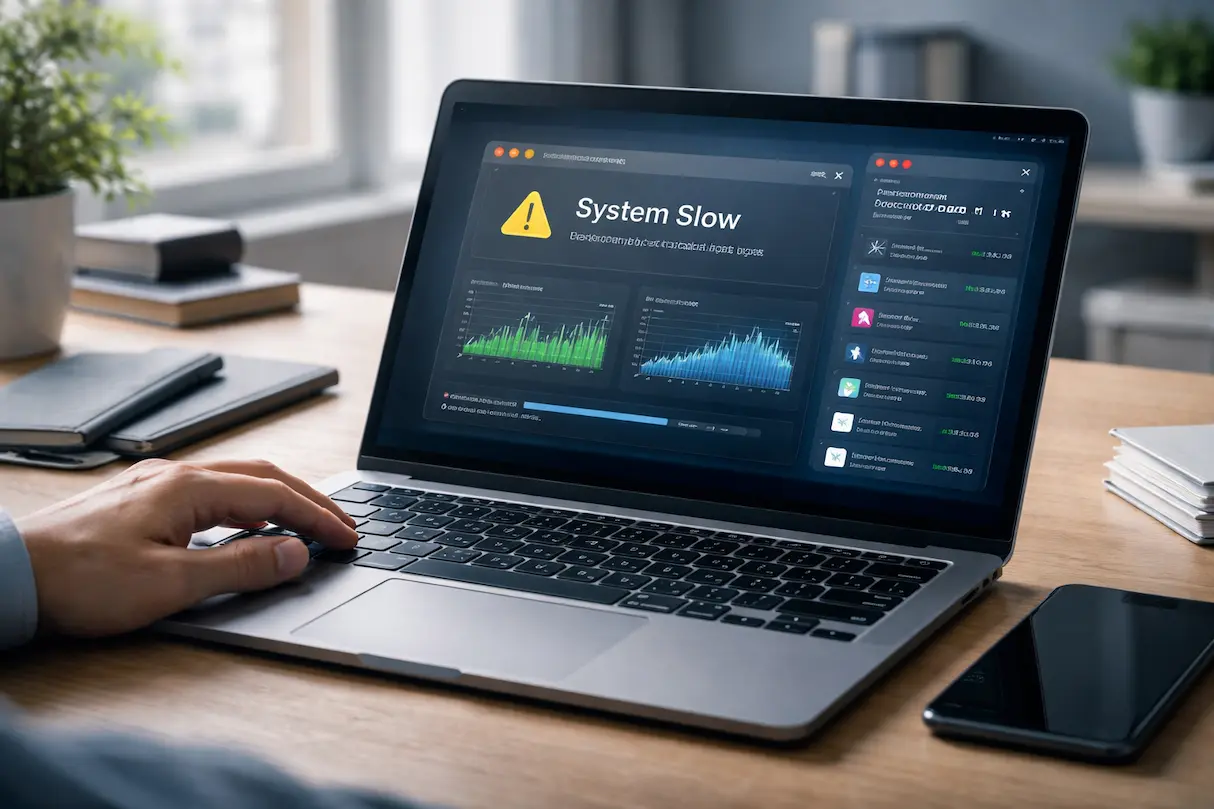
If your computer suddenly slows down, freezes, or stutters, it’s often not because your hardware is outdated—it might be caused by background applications quietly consuming resources. Background apps are programs that run without your direct interaction, performing tasks like updates, syncing files, or collecting usage data. While many are useful, too many running at once can drastically reduce system performance, making even simple tasks feel sluggish.
In this article, we’ll walk through practical, actionable strategies to fix system lag caused by background applications. Whether you’re using Windows or Mac, these tips will help you regain speed and make your computer more responsive, without needing advanced technical knowledge.
Identifying the Applications That Cause Lag
Before solving the problem, you need to know which apps are causing the slowdown. Not all background applications are equal—some use minimal resources, while others can dominate CPU, RAM, or disk usage.
How to Identify Resource-Hogging Apps
- Task Manager (Windows): Press
Ctrl + Shift + Escto open Task Manager. Look under the “Processes” tab to see CPU, memory, disk, and network usage by application. - Activity Monitor (Mac): Navigate to Applications > Utilities > Activity Monitor. You’ll see a list of processes with CPU and memory consumption.
- Real-Life Tip: Sort the list by CPU or memory usage. Applications at the top are likely causing lag.
By identifying resource-heavy apps, you can decide which ones need to be closed, limited, or optimized.
Disabling Unnecessary Startup Programs
Many background applications start automatically when you boot your computer. While convenient, this can drastically slow down system startup and consume memory in the background.
Steps to Disable Startup Programs
- Windows: Open Task Manager → Startup tab → Right-click unnecessary programs → Disable.
- Mac: System Preferences → Users & Groups → Login Items → Select unwanted apps → Remove.
- Example: Chat apps, cloud backup services, or music players often start automatically but aren’t needed immediately.
Practical Tip: Leave only essential programs like antivirus software or system utilities in your startup list. Reducing startup programs improves boot times and frees memory for active tasks.
Closing Background Apps You Don’t Need
Even after startup, background applications continue running unless manually closed. Leaving too many open can cause CPU spikes and slow down your system.
How to Close Apps Properly
- Windows: Use Task Manager → select the app → End Task.
- Mac: Activity Monitor → select the process → Quit or Force Quit.
- Common Mistake: Don’t just close the app window; some apps remain active in the background.
Practical Tip: Focus on apps consuming high CPU, memory, or disk usage. For example, having a web browser with 20 open tabs while a file backup service runs can cause noticeable lag.
Adjusting Background App Permissions
Many apps run silently, performing tasks like notifications or automatic syncing. Restricting their background activity can improve performance without completely disabling them.
Steps to Control Background Permissions
- Windows: Settings → Privacy → Background apps → Turn off apps you don’t need running.
- Mac: System Preferences → Energy Saver → Enable “App Nap” to reduce resource usage for idle apps.
- Real-Life Example: Disabling background updates for cloud storage apps like Dropbox during heavy work periods prevents sudden CPU spikes.
By limiting what apps can do in the background, you reduce unnecessary strain on your system.
Updating and Optimizing Software
Outdated applications or operating systems can mismanage resources, leading to lag. Keeping software updated ensures bugs that cause performance issues are minimized.
How Updates Help Performance
- Updates often fix memory leaks or inefficient background processes.
- They improve compatibility with your OS, reducing CPU or disk usage.
- Example: An outdated antivirus may scan unnecessarily or duplicate tasks, slowing your PC.
Practical Tip: Enable automatic updates for critical apps but schedule heavy updates (like large OS upgrades) during downtime to avoid mid-task slowdowns.
Using Lightweight Alternatives
Some background applications are naturally resource-heavy. Replacing them with lightweight alternatives can significantly reduce lag.
Examples
- Use Notepad++ instead of heavy IDEs for simple text editing.
- Replace bloated chat apps with browser-based versions.
- Use a lightweight media player instead of a full-featured suite for casual listening.
This approach reduces CPU and memory load, especially when multiple applications need to run simultaneously.
Managing Browser Tabs and Extensions
Web browsers are common sources of system lag, especially when multiple tabs or extensions are active in the background.
How to Optimize Browser Usage
- Limit the number of open tabs.
- Disable unnecessary extensions.
- Use built-in browser task managers (e.g., Chrome → Shift + Esc) to see which tabs consume the most resources.
- Consider browser features like “tab sleep” or “suspend inactive tabs.”
Real-Life Tip: Streaming videos or running heavy web apps in multiple tabs can freeze other applications. Closing idle tabs improves overall system responsiveness.
Running Regular Malware and Spyware Scans
Malware and spyware often operate in the background without your knowledge, consuming CPU, memory, and network bandwidth. This can be a hidden cause of persistent lag.
Steps for Safe Scanning
- Use trusted antivirus software to perform full system scans.
- Schedule regular scans to catch new threats.
- Consider specialized tools like Malwarebytes for additional scanning.
Practical Tip: Avoid free tools with intrusive ads or bloat, as they may worsen the problem. A clean system ensures background processes are legitimate.
Adjusting System Visual Effects and Animations
While not strictly background apps, system animations and visual effects can strain resources, especially on older computers. Reducing these effects frees up CPU and memory for active tasks.
Steps to Adjust Visual Effects
- Windows: System → Advanced System Settings → Performance Settings → Adjust for Best Performance.
- Mac: System Preferences → Accessibility → Reduce motion and transparency.
This simple adjustment often makes a noticeable difference when combined with managing background apps.
Increasing System Resources if Necessary
Sometimes, despite optimizing software, your system may still lag due to insufficient hardware resources. Increasing RAM or switching to an SSD can make background applications run more smoothly.
Options to Consider
- Adding RAM allows more applications to run without slowing down.
- Upgrading to an SSD reduces disk-related lag from background processes.
- Closing unnecessary startup programs maximizes the benefit of upgraded hardware.
Real-Life Example: Users running multiple virtual machines or editing large files benefit greatly from additional RAM, preventing background apps from freezing active work.
Monitoring System Performance Regularly
Ongoing monitoring helps prevent lag before it becomes noticeable. Using built-in tools or third-party utilities gives insight into which applications affect system performance.
Monitoring Tips
- Check Task Manager/Activity Monitor periodically.
- Use performance monitoring tools like HWMonitor or Resource Monitor.
- Track CPU, memory, and disk usage over time to spot trends.
Practical Tip: This proactive approach allows you to identify problem apps before they significantly impact productivity.
Conclusion: Keeping Your System Smooth and Responsive
System lag caused by background applications is a common problem, but it’s manageable with the right approach. By identifying resource-heavy apps, disabling unnecessary startup programs, limiting background activity, optimizing software, and monitoring system performance, you can restore speed and stability. Small, consistent actions—like managing browser tabs, updating software, and adjusting visual effects—can make a big difference. Over time, these practices create a system that runs efficiently, even when multiple applications need to operate in the background.
FAQs
1. How can I quickly identify which background apps are slowing down my computer?
Use Task Manager on Windows or Activity Monitor on Mac to sort processes by CPU, memory, or disk usage. This shows which apps are consuming the most resources in real-time.
2. Will disabling background apps affect system functionality?
Disabling non-essential apps usually doesn’t impact your system. Avoid turning off security software or critical system processes, which are necessary for proper operation.
3. How often should I check for background apps causing lag?
Checking once a week is sufficient for most users. If you notice frequent slowdowns, consider monitoring daily until you identify patterns.
4. Can malware cause lag even if I have few apps running?
Yes. Malware and spyware often run silently in the background, consuming CPU, memory, and disk resources. Regular scanning helps prevent this.
5. Are there safe tools to automatically manage background apps?
Yes. Built-in OS features like Windows Task Manager and Mac Activity Monitor, as well as trusted utilities like CCleaner or Process Lasso, can help manage background apps safely.